

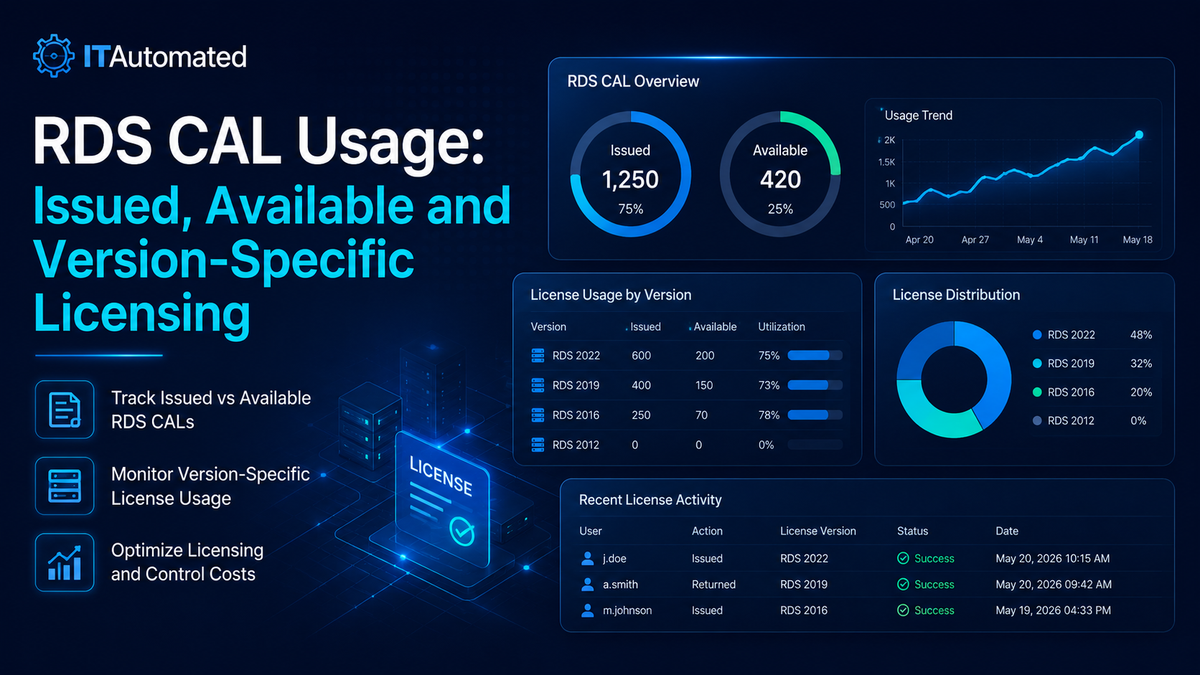
Remote Desktop Services licensing is often reduced to one number, but a real environment may contain several licence servers, multiple Windows Server versions and both Per User and Per Device licence pools.
Understanding what “issued”, “available” and “total” mean is essential before deciding that an environment has too many or too few RDS Client Access Licences.
What is an RDS CAL?
An RDS Client Access Licence authorises a user or device to connect to a Remote Desktop Services Session Host where an RDS CAL is required. The licence server installs, issues and tracks the applicable CALs.
An appropriate licence must exist on an activated Remote Desktop licence server, and the Session Host must be configured to use the correct licensing mode and server.
Per User and Per Device licensing
Per Device CALs
A Per Device CAL is issued to a client device. This model may suit shared-user scenarios where a limited set of devices is used by many people.
Per User CALs
A Per User CAL is assigned to a user. This model may suit users who connect from several devices.
The correct model depends on Microsoft licensing terms and the organisation’s usage pattern. Technical visibility does not replace licensing compliance review.
What do total, issued and available mean?
Total
The total represents the CALs installed in a specific licence pool on a specific licence server.
Issued
Issued represents licences the server has assigned or recorded as used, depending on the licensing model and report.
Available
Available is normally calculated as the remaining capacity in that pool:
Available = Total − Issued
This arithmetic is useful, but it must be interpreted in context. Per User reporting and enforcement behaviour differ from Per Device licensing, and an issued count does not automatically prove concurrent usage.
Why version-specific pools matter
RDS CALs are installed in versioned licence packs. An environment may have separate pools for Windows Server 2019, 2022 and 2025.
A combined total that ignores version can be misleading. Administrators should see:
- Licence-server name.
- Windows Server CAL version.
- Per User or Per Device model.
- Total installed.
- Issued.
- Available.
Version-aware reporting helps identify whether the correct licence pool is available for the Session Hosts in use.
Why each licence server must remain separate
When several licence servers exist, every server has its own installed packs and operational state. Combining all numbers into one total can hide:
- A server with no available CALs.
- A server that is unreachable.
- A version mismatch.
- Different licensing modes.
- Duplicate or retired licence infrastructure.
A useful dashboard may provide a combined summary, but it should retain the independent server rows underneath.
Common RDS licensing problems
The Session Host cannot find a licence server
Check the configured licence-server names, DNS, connectivity, policy and service state.
The licensing mode does not match the installed CALs
A Session Host configured for Per User licensing cannot rely on a Per Device pool, and vice versa.
The required CAL version is unavailable
Review the Session Host version and the versioned CAL packs installed on the licence server.
Counts appear inconsistent
Confirm that you are viewing the correct server, pool, version and licensing model. Compare the dashboard data with Remote Desktop Licensing Manager reports.
A server is listed but cannot be queried
Test name resolution, firewall access, permissions and the Remote Desktop Licensing service. Do not treat an unavailable server as zero usage.
A practical licence-review workflow
- List every authorised RDS licence server.
- Confirm activation and service state.
- Record every installed CAL pool.
- Separate pools by server, version and model.
- Record total, issued and available counts.
- Compare configured Session Hosts with the intended licence servers.
- Generate CAL usage reports where applicable.
- Investigate exceptions before changing licence quantities.
Licence-server design considerations
A reliable RDS licensing design should avoid making every Session Host dependent on an undocumented or obsolete server. Record which Session Hosts use each licence server, how the server is protected, who administers it and how its licence packs are backed up or recovered.
Review the following:
- Whether the licence server is activated and supported.
- Whether DNS aliases or direct server names are used.
- Whether policy and local configuration agree.
- Whether the server is monitored for service and connectivity failures.
- Whether retired Session Hosts still reference old licence servers.
- Whether the correct versioned CAL packs are installed before a server upgrade.
Licensing should be included in change planning. A Windows Server upgrade can succeed technically while leaving the new Session Host without an appropriate CAL pool.
What to include in a licensing report
A useful licensing report should be repeatable and easy to compare over time. Include the collection date, licence-server name, operating-system version, activation state, installed packs, licensing model, total licences, issued licences, available licences and any query failures.
Also record which Session Hosts are expected to use each server. This turns a licence count into an operational dependency map and makes it easier to identify whether a reported shortage is a real capacity issue, a configuration error or an unavailable licence server.
RDS CALs and Azure Virtual Desktop
Microsoft states that a user or device connecting to an Azure Virtual Desktop session host running Windows Server may require an RDS CAL. Licensing requirements depend on the operating system and entitlement model, so the technical deployment and commercial licensing position should be reviewed together.
How ITAutomated presents RDS licensing
The ITAutomated Licences module is designed to show:
- A combined summary for supported Windows Server versions.
- Independent rows for each configured licence server.
- Separate circles for version-specific pools.
- Issued, total and available figures.
- Citrix licence visibility alongside RDS licensing.
Review the Licences capability and the system requirements.
Frequently asked questions
Does “issued” mean the same as concurrent use?
No. Issued licence records and concurrent active sessions are different measurements.
Can I add the totals from several licence servers together?
A combined summary can be useful, but always retain the server, version and licensing-model breakdown so shortages and mismatches remain visible.
Does a dashboard replace a licensing audit?
No. A dashboard improves technical visibility. Commercial entitlement and compliance should be validated against Microsoft licensing terms and procurement records.
Official references
About ITAutomated
ITAutomated is a Windows desktop administration platform for Citrix, Active Directory, diagnostics, licensing, documentation and controlled operational workflows. It is designed to help administrators see the relevant context, preview sensitive operations and retain useful evidence.
Explore ITAutomated capabilities or visit the Support Centre.
Explore the ITAutomated administration workflows
Review the Citrix, Active Directory, diagnostics, licensing and documentation capabilities behind the technical guidance.
